Be yourself; Everyone else is already taken.
— Oscar Wilde.
This is the first post on my new blog. I’m just getting this new blog going, so stay tuned for more. Subscribe below to get notified when I post new updates.
Be yourself; Everyone else is already taken.
— Oscar Wilde.
This is the first post on my new blog. I’m just getting this new blog going, so stay tuned for more. Subscribe below to get notified when I post new updates.
In this post we will use Clion IDE on Windows and document few errors which i encountered while building with android NDK.
1: Windows /CLion IDE with cmake
Here is the build environment we chose to use :
Download sample project : https://github.com/mamtadevi/CrossPlatformBuild/tree/master/UtilityClion
Import project to your Clion IDE. Before building project, let us check out some cmake settings. On the left bottom corner, you will see cmake tab, hit on settings. tool chain will detect all the installed tools, along with bundled cmake and you can see the version numbers too.
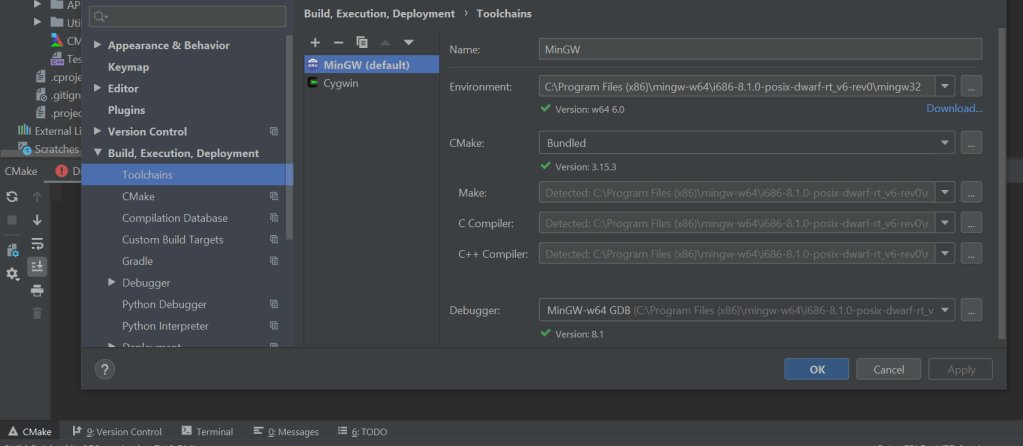
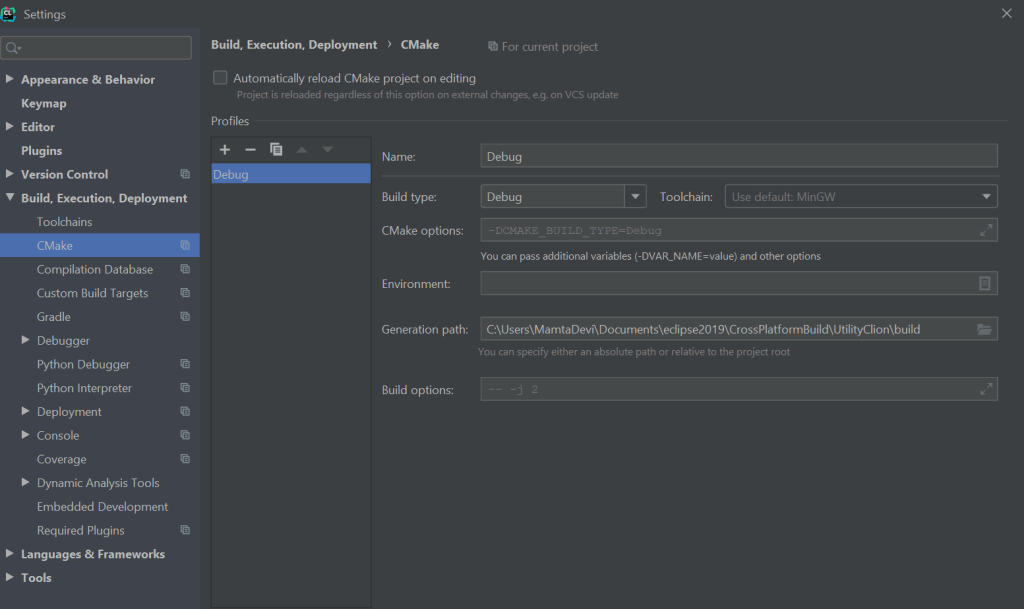
In cmake tab by default it will detect the default toolchain. You can create different toolchains for mingw, cygwin and and select them in cmake. Also in cmake options you can choose to create with different make file generators as shown in Part1 .
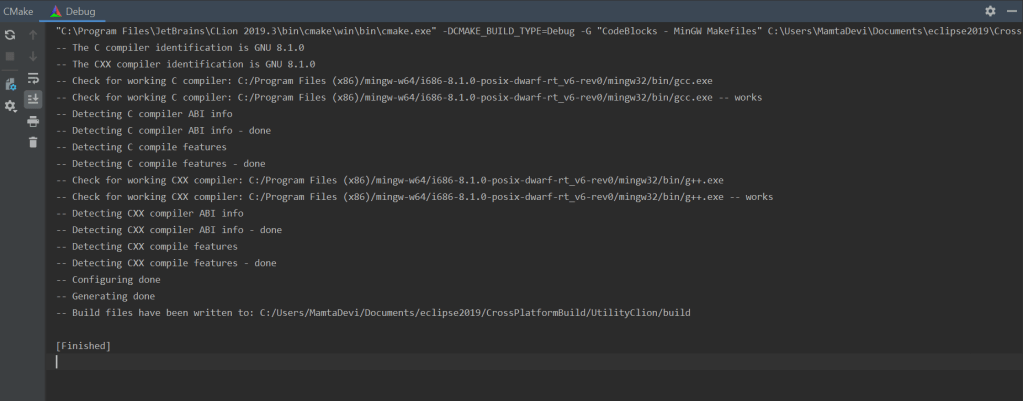
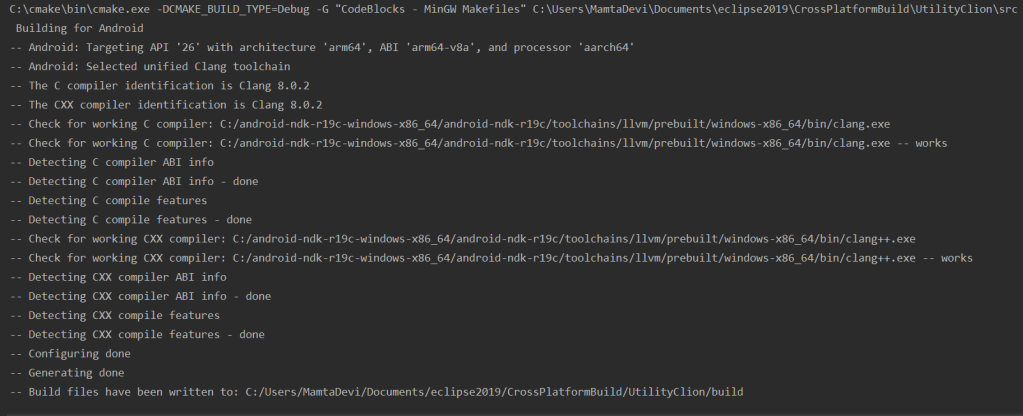
Go back to project, click on cmake settings , hit “Reset Cache and Reload Project”, check the following output, by default cmake choose “CodeBlocks -MinGW Makefiles generator”.
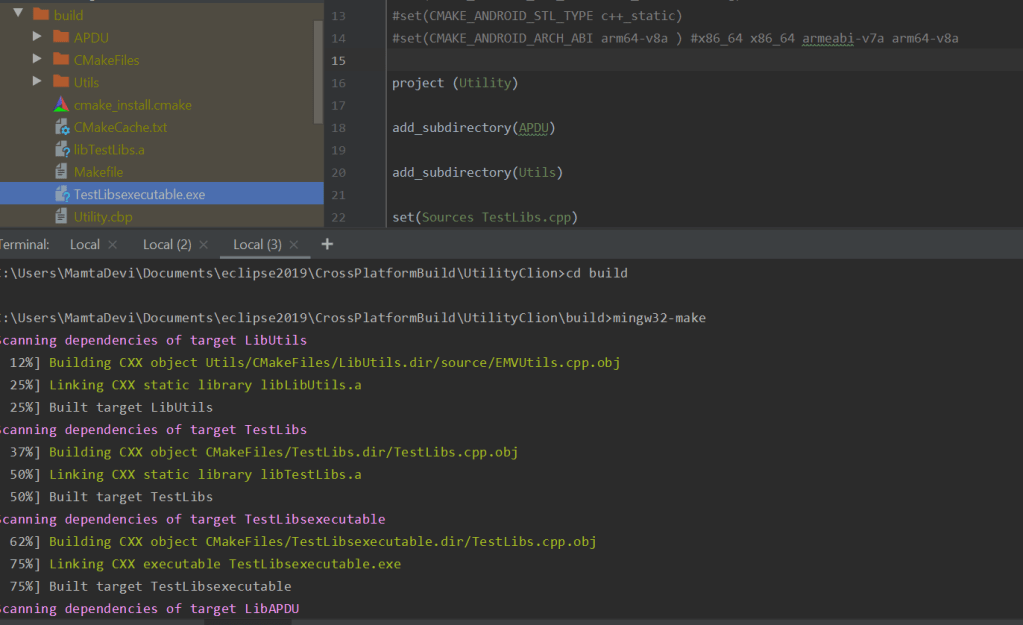
Make files are generated in build folder. Its the time to execute generated MakeFile. Go to terminal. You can see TestLibExecutable.exe generated as you execute makeFile.
Simply execute the .exe, if it is build correctly, you should see execution message.

2: Windows /CLion IDE with cmake/Andriod NDK
Next is to build a cross platform target using Android NDK. For this we will need Andriod NDK in addition to the tool chain we already have. Download android-ndk-r19c-windows-x86_64. Uncomment the following section in CMakeLists.txt and we are ready to build. The target ABI chosen is : arm64-v8a. You can choose to build for any one the four targets mentioned in file.
#message(“################################################################”)
message(” Building for Android “)
#message(“################################################################”)
set(CMAKE_CLANG_CXX_LIBRARY -std=libc++ )
set(CMAKE_SYSTEM_NAME Android)
set(CMAKE_SYSTEM_VERSION 26)
set(CMAKE_ANDROID_NDK “C:/android-ndk-r19c-windows-x86_64/android-ndk-r19c”)
set(CMAKE_ANDROID_NDK_TOOLCHAIN_VERSION clang)
set(CMAKE_ANDROID_STL_TYPE c++_static)
set(CMAKE_ANDROID_ARCH_ABI arm64-v8a ) #x86_64 x86_64 armeabi-v7a arm64-v8a
Go back to cmake settings, hit “Reset Cache and Reload Project” , you will see following output. This time you will see clang as identified compiler, but you will see following error:
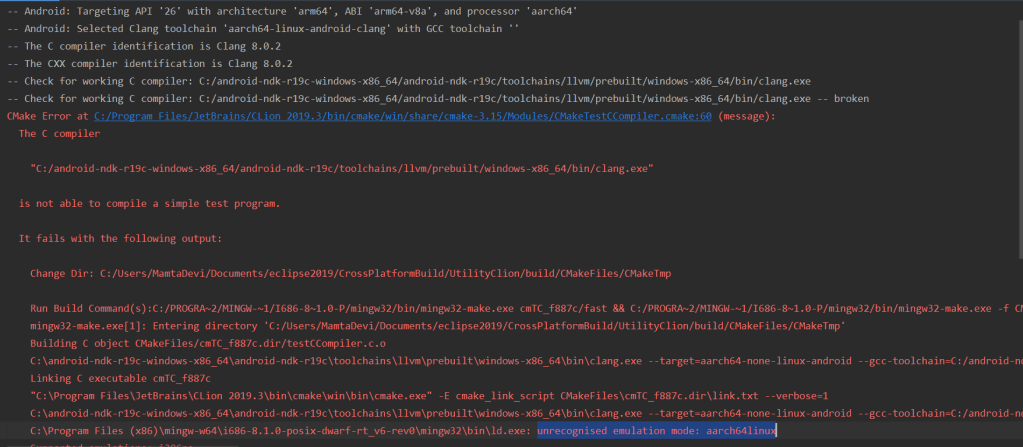
The reason of compilation error is a linking error : unrecognised emulation mode: aarch64linux. If you notice on the top Clang selects GCC tool chain for to generate build file and tries to find required emulation mode aarch64linux, since mingw does not have this target emulation mode, so we need some changes.
with cmake 3.15 somehow clang always selects Android tool chain with GCC tool chain and what we need to make it work is Clang with Unified toolchain to get correct target emulation mode.
On cmake 3.16 , it selects Clang with unified tool chain. Go back to settings and in tool chain, simply replace bundled cmake with cmake 3.16.
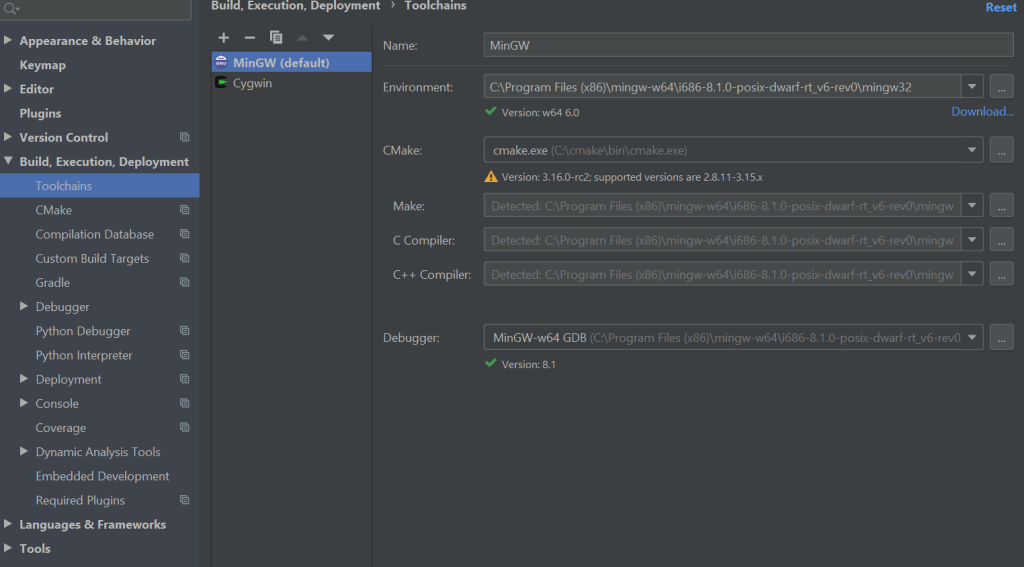
Apply changes and build again, this time clang with unified tool chain is selected and build files should be generated as follows:
Go to terminal and build MakeFile:
C:\Users\MamtaDevi\Documents\eclipse2019\CrossPlatformBuild\UtilityClion>cd build C:\Users\MamtaDevi\Documents\eclipse2019\CrossPlatformBuild\UtilityClion\build>mingw32-make
You will notice following error:
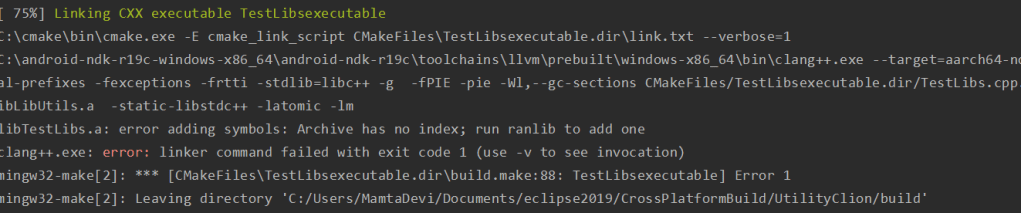
Reason of error is cmake has failed to find two important executables: ranlib.exe & ar.exe, so we need to mention them explictly in cmake arguments.
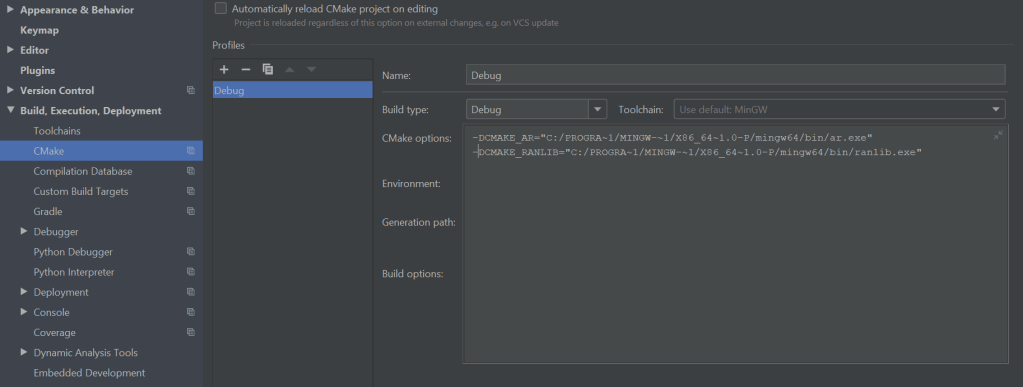
Apply and follow the build procedure again. This time after executing MakeFile, you should see the generated executable.
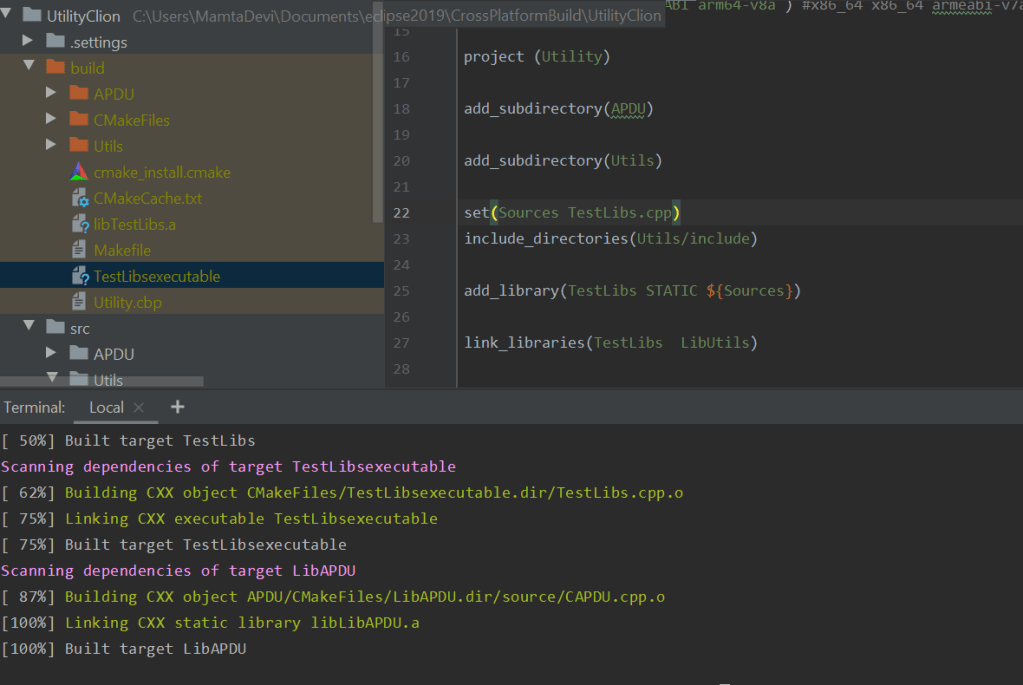
To summarize this article, it was a small attempt to make Clion work with cmake to generate build files for host and cross platform android targets. Part III will summarize usage of Clion on Linux machine and cmake with two more tools (doxygen for documentation & GoogleTest for unit testing).
Recently I came across a requirement where i had to build binaries for different cross platforms, After juggling with different IDE’s and tool chains, i thought of putting across all the learning here for future reference and also to make it a little helpful for someone who might face similar challenges.
Cmake is a very helpful tool which comes very handy to generate cross platform build files, so you can simply say it is a cross platform build generator. cmake takes CMakeLists.txt File as its input and generates Makefile in output which gets executed through make program. there are various makefile generator you can provide as cmake arguments. Here is a list of generators available.
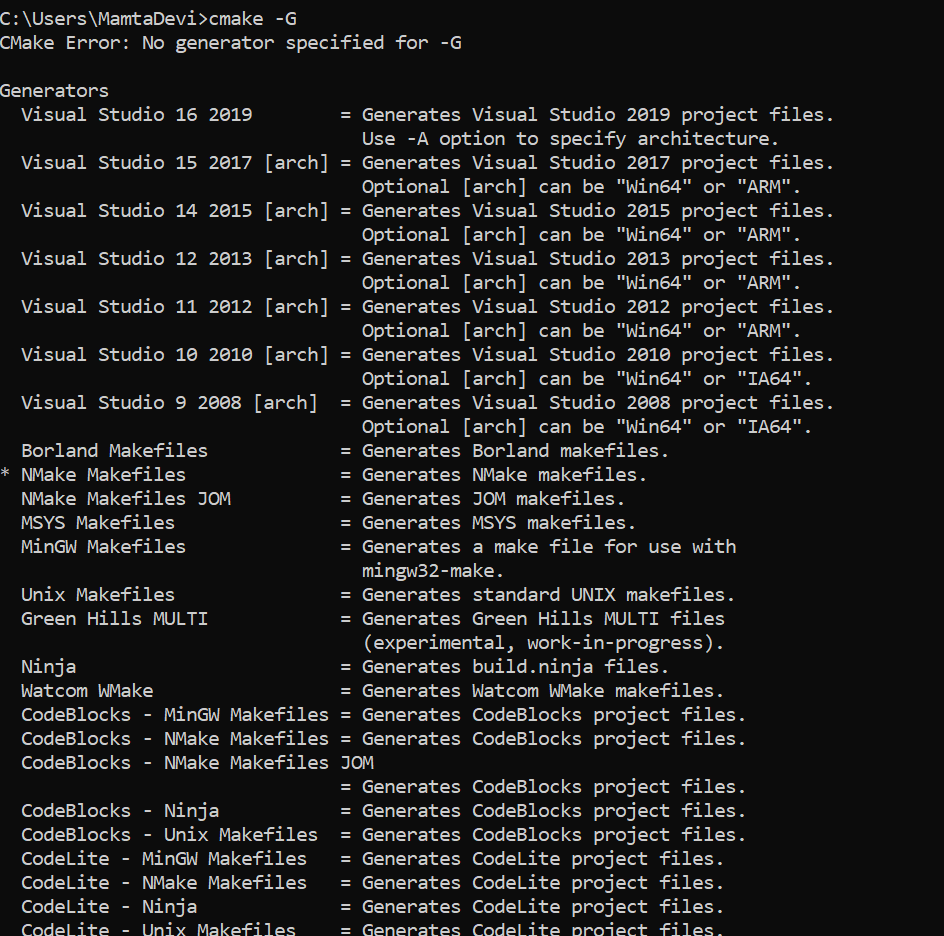
For flexibility i chose to use cmake with two IDE’s Eclipse2019 for c++ & Clion by JetBrains. I will summarize this is three parts :
In this post i will cover only Part 1 and Part 2 & 3 will be covered in subsequent posts. So let us start with Part1.
1: Windows /Eclipse IDE for C/C++ with cmake: The build combination we are going to try here is :
Although this version of eclipse is equipped with cmake, somehow i couldn’t get it to work very nicely for my needs. So next thing i had to find was another alternative which is more flexible and configurable and then i found this plugin Cmake4eclipse, available on Eclipse MarketPlace. To install go to help–> EclipseMarket place–>(search of Cmake4eclipse) and install.
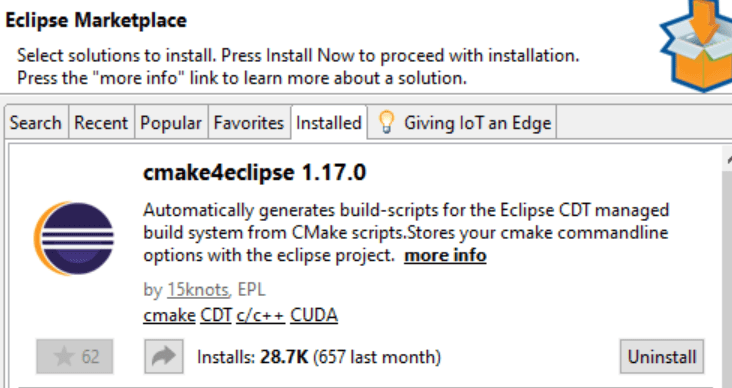
After installing plugin, a bit of configuration is needed.
On Eclipse create a new c++ project (do not choose cmake project).
Step 1 : After the project is created, Right click on project, you should see cmake4eclipse plugin
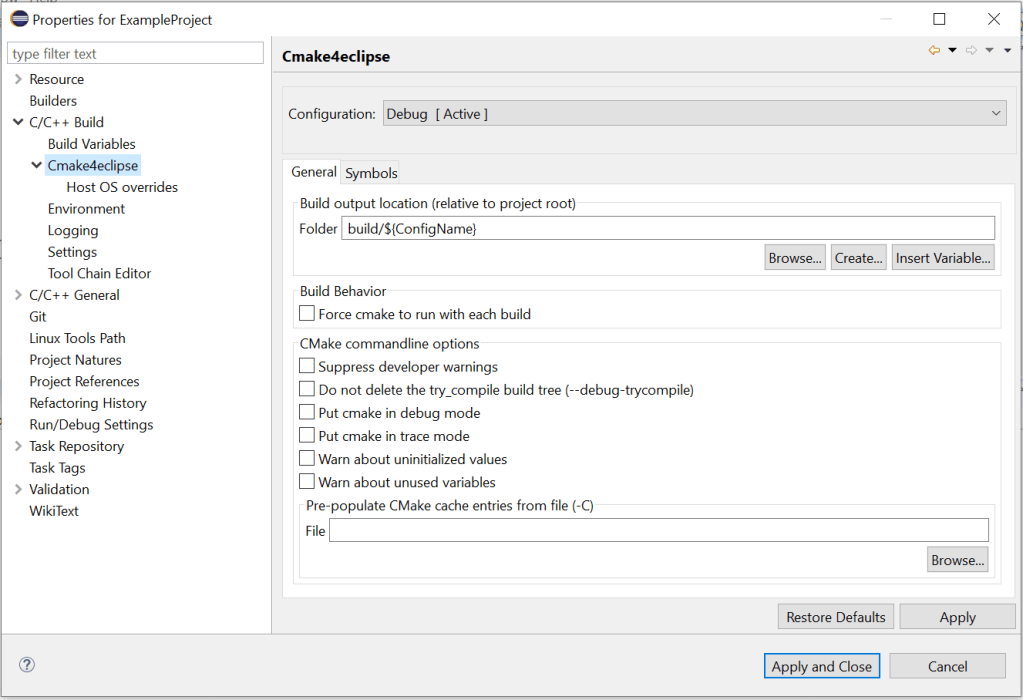
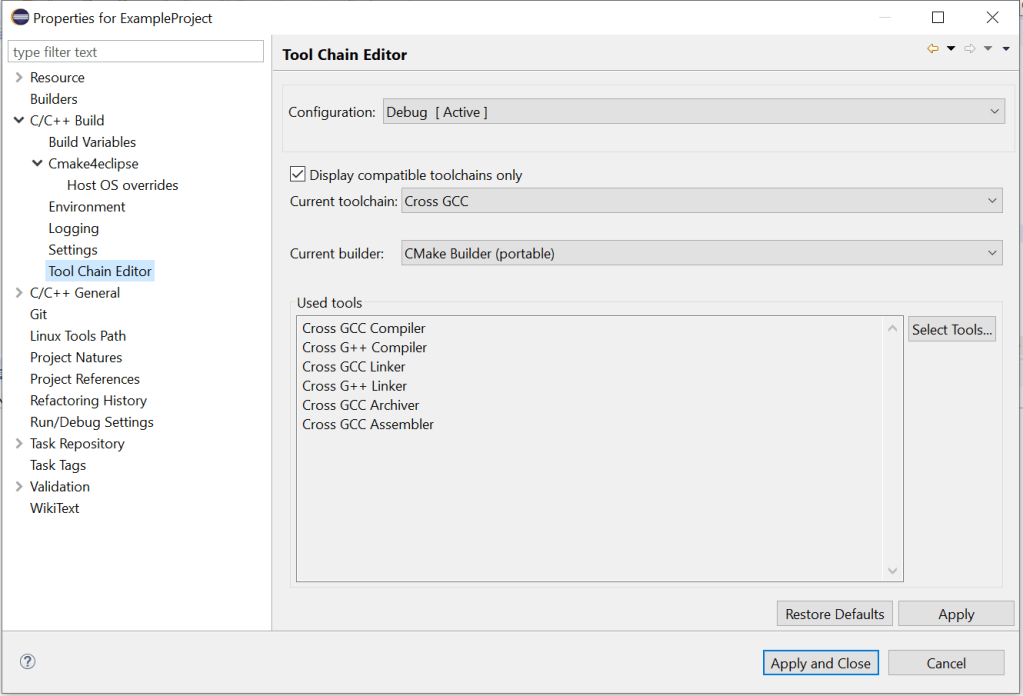
Step 2: click on Tool Chain Editor and select CMake builder (portable), Click on apply.
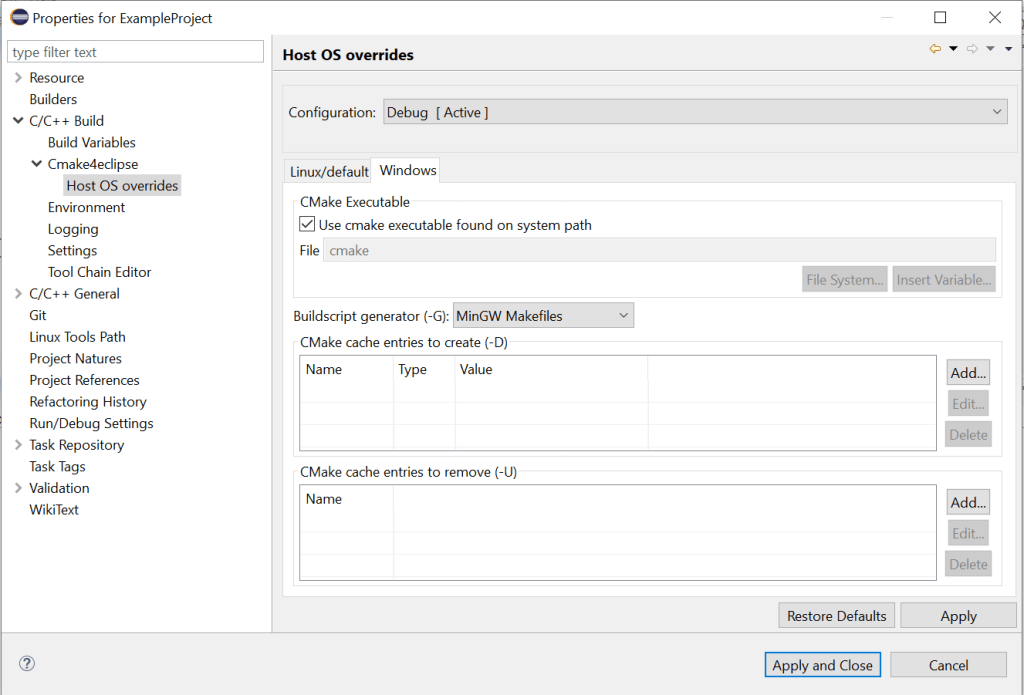
Step 3: Since i am using Mingw to generate make files, i selected MinGW Makefiles, click on Apply.
Step 4: Cmake is configured, it is the time to build and execute. Right click on project, click on build project. if everything goes fine, you should see the build files generated in build folder. you might see this error :
sh.exe was found in your PATH.
In this case, you will need to remove all sh.exe files from you path, it can be cygwin, git on any other shell files for MinGW to work properly.
You can take this sample project on github : https://github.com/mamtadevi/CrossPlatformBuild
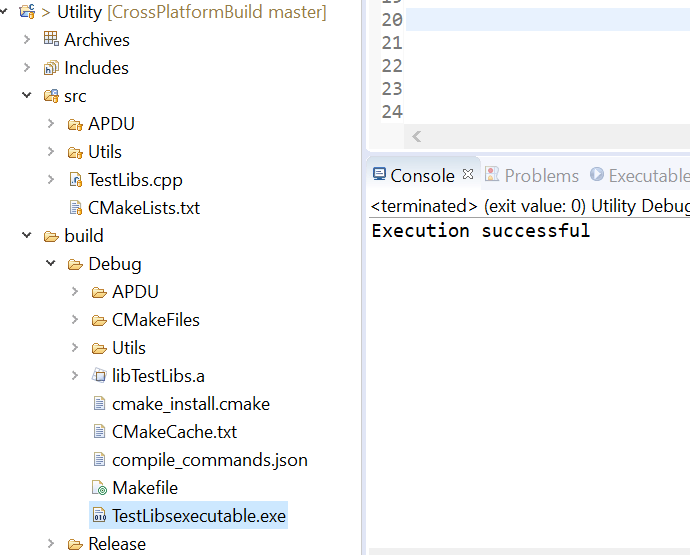
Right click build project ,If it builds fine,it will create TestLibsexecutable.exe . you should see this output after executing TestLibsexecutable.exe.
2: Windows /Eclipse IDE for C/C++ with cmake: Next we will try to build a cross platform target using Android NDK. For this we will need Andriod NDK in addition to the tool chain we already have. Download android-ndk-r19c-windows-x86_64
Next thing we need to do is edit base CMakeLists.txt. We need to set CMAKE fields to indicate NDK tool chain and few other parameters. Uncomment the following section in CMakeLists.txt and we are ready to build. The target ABI chosen is : arm64-v8a. You can choose to build for any one the four targets mentioned in file.
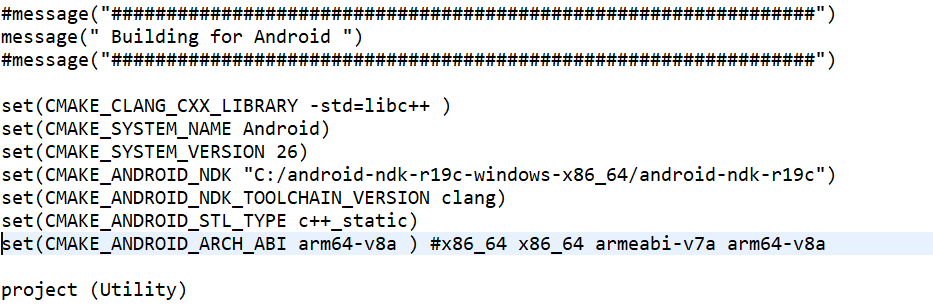
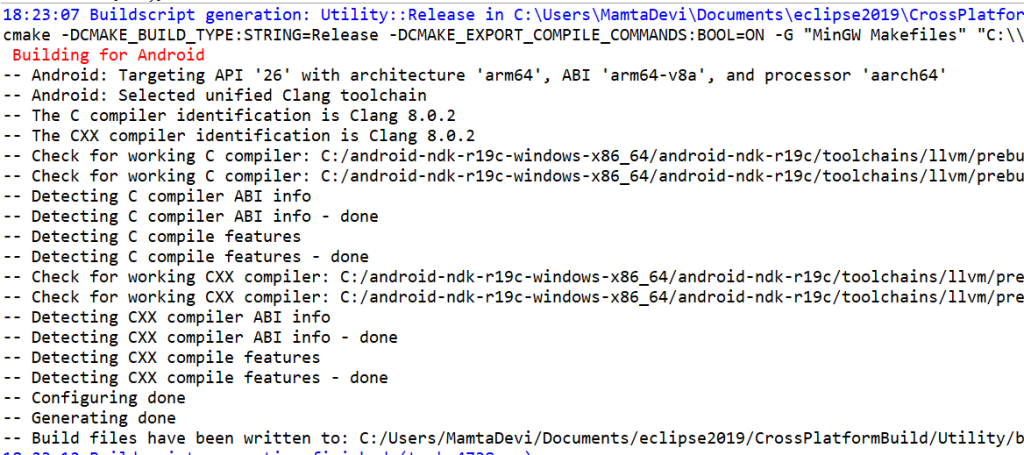
Save your changes, Right click on project and hit build. You should now see clang as identified compiler.
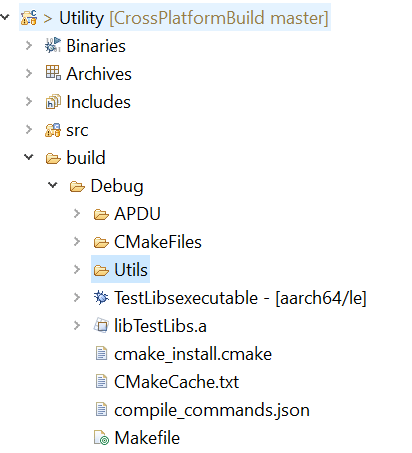
Now if you see your build folder, next to the binary , arch-abi is mentioned which means that it compiled for the correct target, But you can’t run it as your target platform is different than the host platform.
To summarize, this small project was created to have a basic understanding of how we can use cmake to compile for different host and target platforms using Eclipse.

 codeshod.code.blog